Locating the Order
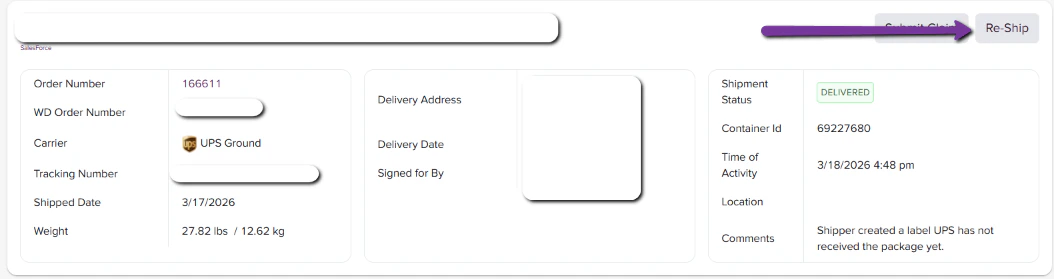
The user will want to navigate to the Shipments tab within the system. Once in the Shipments section, the order will need to be located by searching either the order number or the tracking number:
Creating the Reship
From here, the user can search through the order list and locate the 3-dot icon to the right of the order details. Clicking on the 3-dot icon will expand additional options for the user, including the option to: Re-ship this Container:

The system will populate a confirmation box displaying a copy of the container’s original contents from the Order/Tracking number with the suffix -RESHIP.
Please note: This will only copy the contents of the tracking container. Additional reships will need to be clicked for each additional container if multiple containers within an order require reshipping.
Automatic Hold Placement
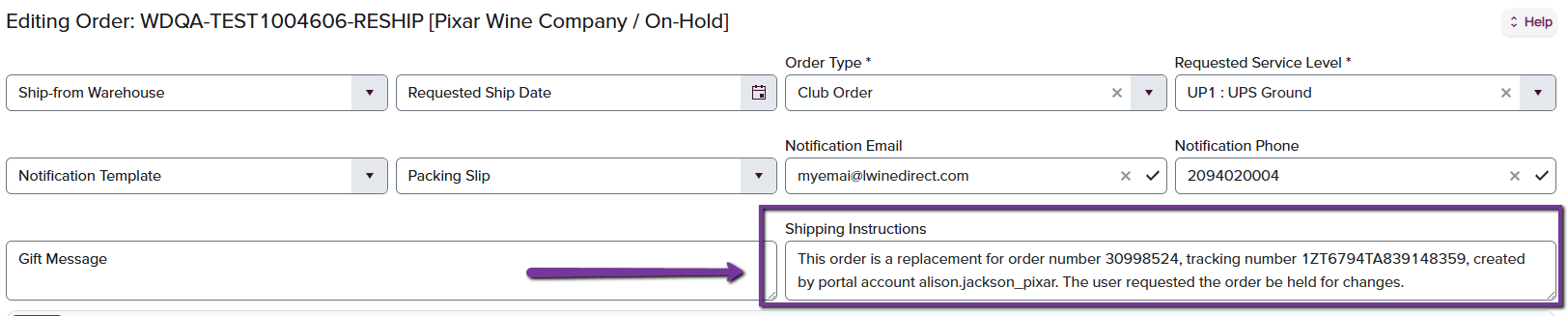
In addition to mirroring the contents of the original container/tracking number, the system will automatically place a hold on the reshipment as a Shipping Instruction. This will hold the order so the user can make any final edits. The order will be visible for changes on the dashboard under the order hold section within the Shipping Instruction hold queue: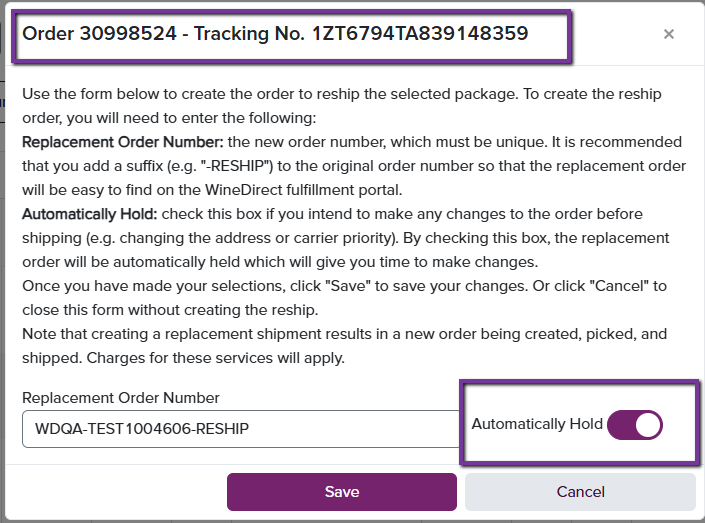
To Finalize a Reship
The Shipping Instruction hold must be removed from a Reship to allow the order to continue to the next fulfillment status. To do this, the user must locate the order in the hold queue and, after confirming the order is ready to ship, delete all characters from the default message in the Shipping Instruction section and SAVE all changes. The system will refresh and advance the reship to the next stage of fulfillment: